




















Stake App: Browser Setup, Android, iPhone and Login Help
A Stake icon on your phone can open a browser app, a website shortcut or an entirely different product with a similar name. Identify which one you have before signing in. This guide explains the official Stake.com browser-app route, the Android and iPhone steps, and the account problems that installation cannot solve.
You keep your existing login and account records when you use the same service on another device. A fresh icon does not create a new balance, approve a restricted location or remove a verification request. Read the India access update before relying on older download instructions.
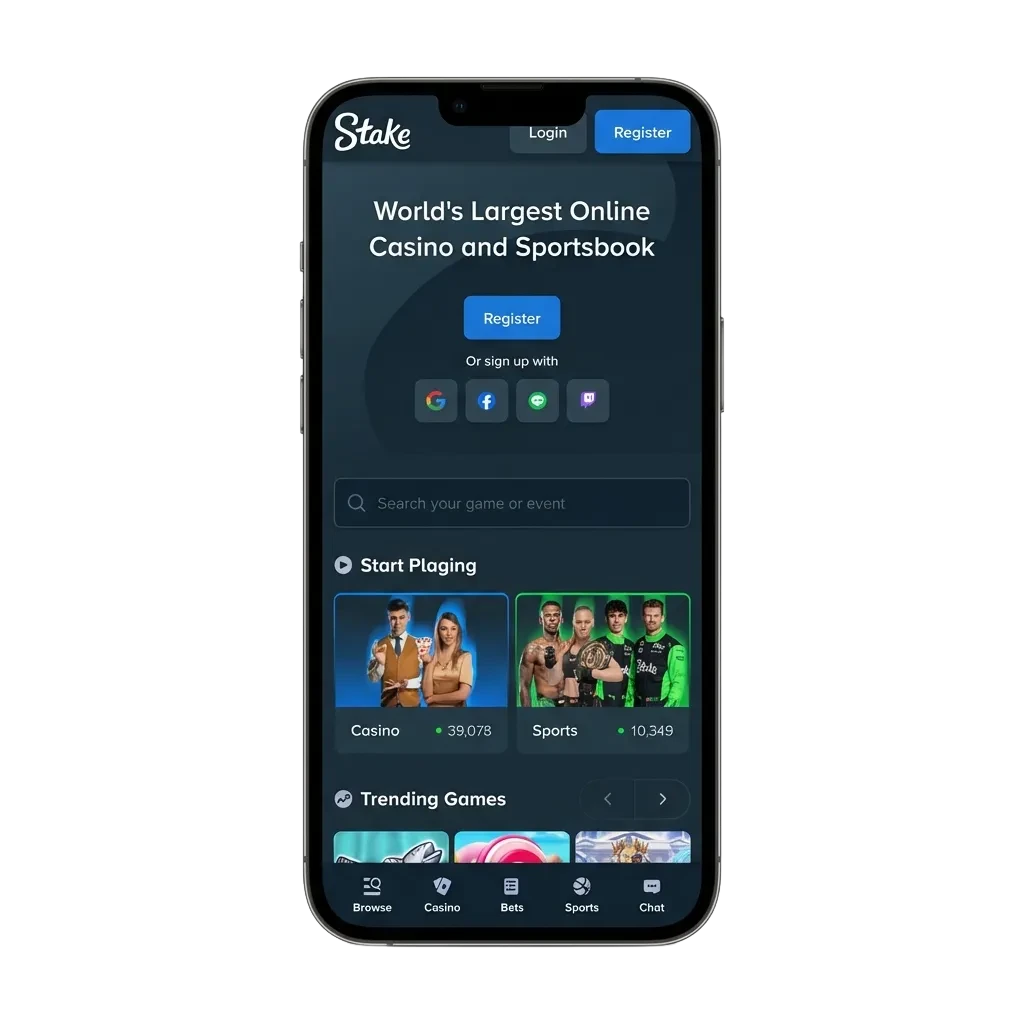
Know what you are adding to your phone
Stake.com describes a browser installation method in its mobile guide. You start from the website and use the browser's home-screen or installation controls. People often call this a PWA, short for progressive web app.
A browser may also offer a simpler shortcut. Both create convenient access, but a shortcut can open an ordinary tab while an installed web app may use its own window. The presence of an icon alone does not tell you which format your device created.
| Format | Where it comes from | What to inspect |
|---|---|---|
| Mobile website | An address opened in a browser tab | The actual domain and sign-in method |
| Home-screen shortcut | Your browser's shortcut action | The destination saved behind the icon |
| Browser app | The website and browser installation controls | The site identity and requested permissions |
| Native application | A verified store listing or software package | The publisher, product and official download reference |
Do not infer that every regional Stake-branded service uses the same distribution method. A listing for another jurisdiction, or for an unrelated investing business, can share the name while having a different publisher and account system.
Browser tab and home-screen app: what really changes?
A regular tab keeps the address bar and browser navigation close at hand. A home-screen launch can provide a cleaner view and a shorter route back to the site. Those are presentation differences. Account ownership, accepted wagers and payment rules remain attached to the service.
Some settings belong to the browser or installation rather than the account. Notification permission, local storage and whether a page opens in a separate window can vary between devices. A change on one phone therefore does not prove that the account itself changed. Check the relevant settings level before contacting support about an apparent inconsistency.
Consider a simple example. You sign in through a desktop browser, then open the home-screen icon on a phone and see a login prompt. The phone may simply lack an active session. It does not follow that the desktop balance has disappeared or that money must be transferred to a mobile account.
Conversely, an icon that opens an already authenticated view deserves care on a shared device. Use the service's sign-out control when finished, and understand any session-management options available in the account. Closing the window is a visual action; ending a session is an account-security action.
Stake Application Interface
The mobile gallery shows the main screen, registration, promotions, sportsbook and casino. These are different views of the same account environment. A home-screen icon can make the site easier to reopen, but it does not create a separate mobile membership, bonus balance or payment account.
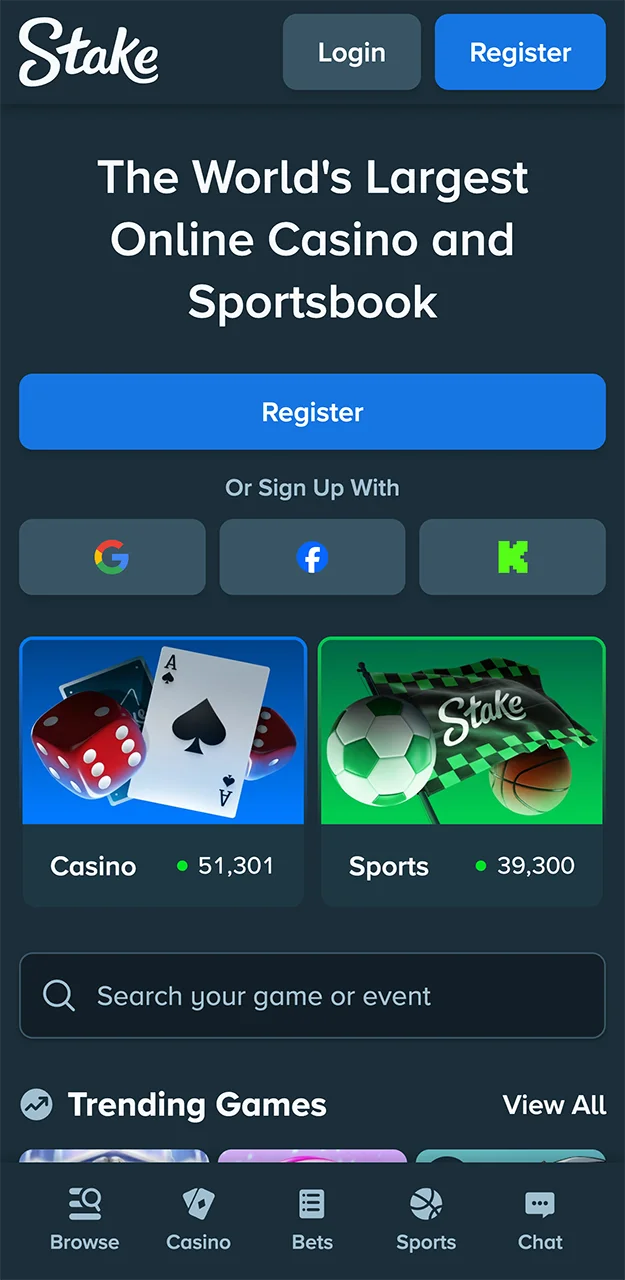
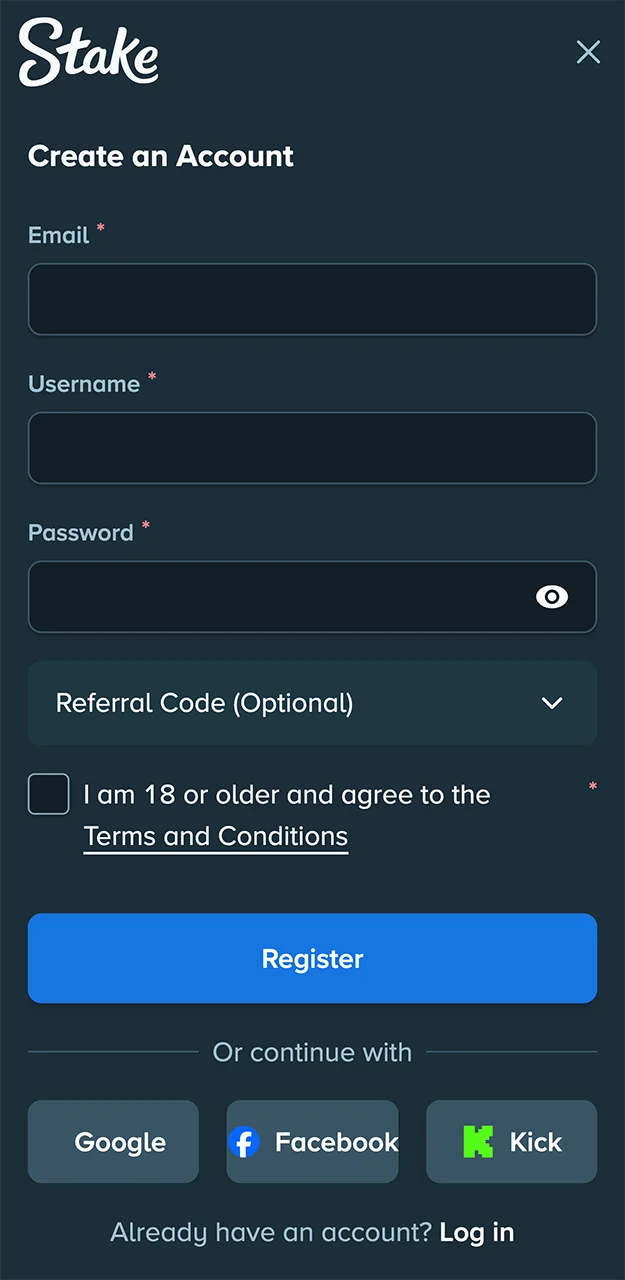
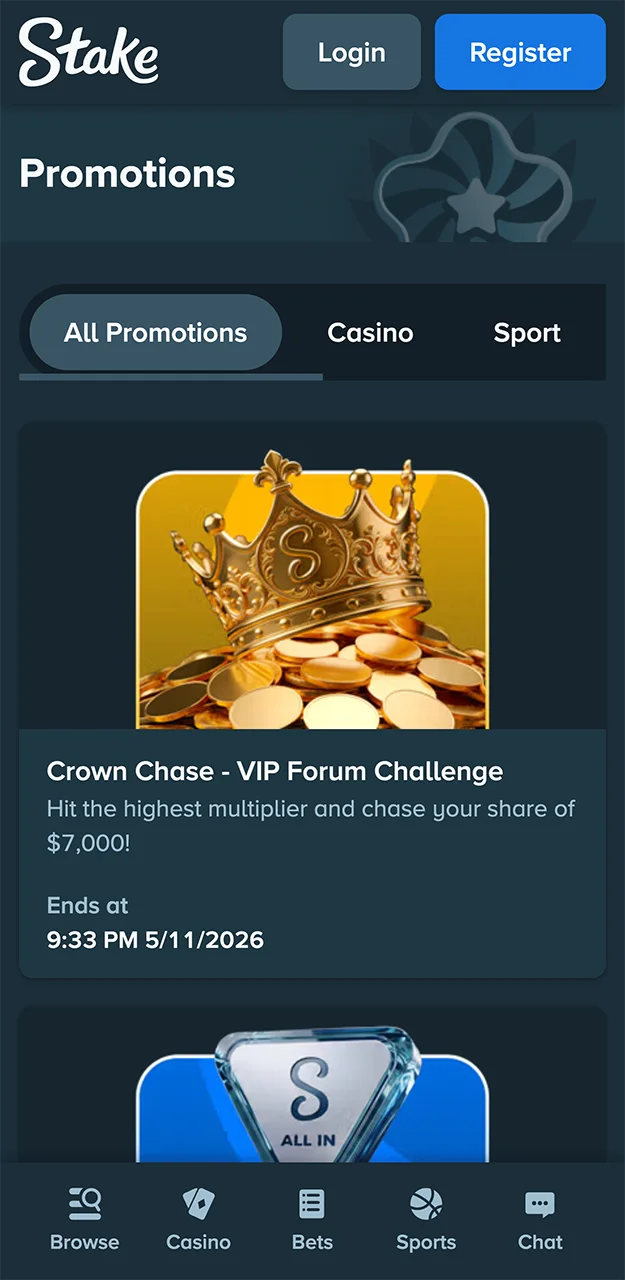
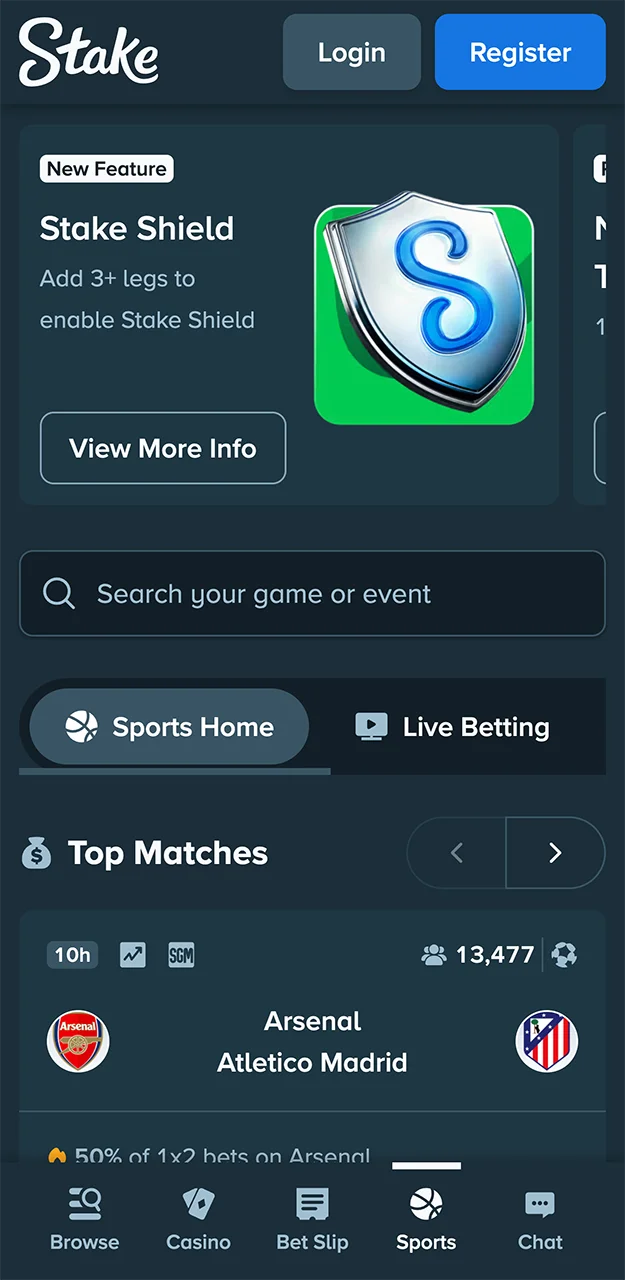
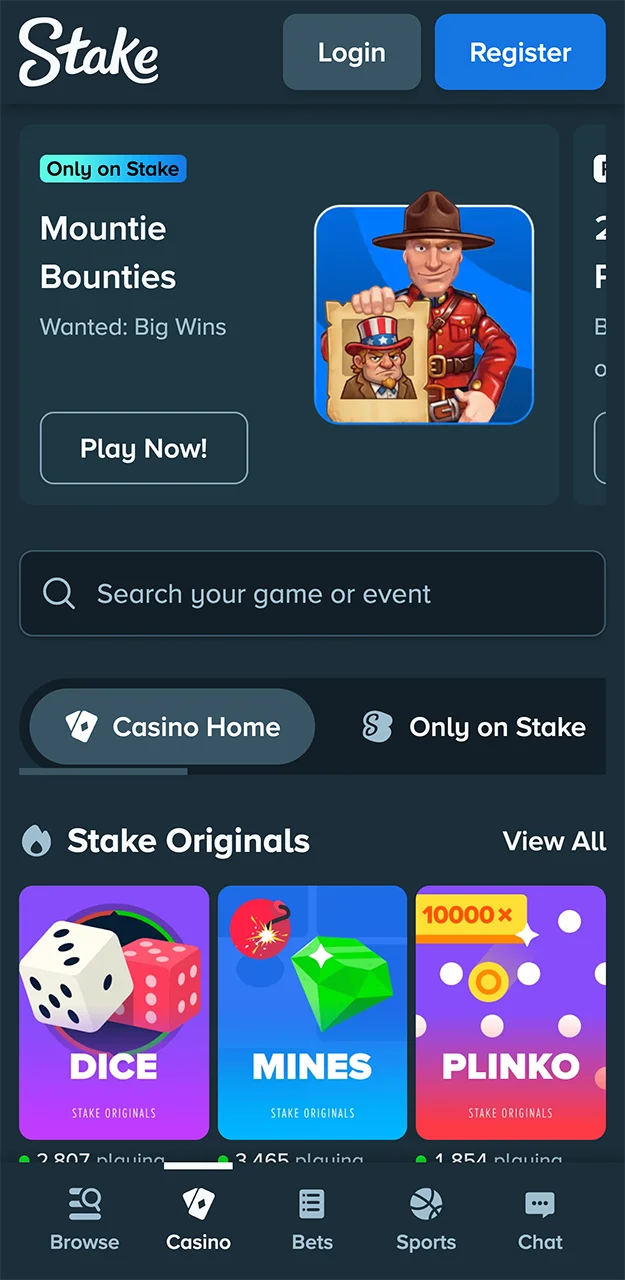
Read the screenshots from the navigation inward. First locate the product area, then the account or wallet controls, then the content panel. On a phone, a menu may temporarily cover the page beneath it. Close that menu before assuming a game, market or payment field is missing. The screen has limited space, so some controls appear only after you open their parent panel.
A screenshot cannot show every state of a form. A keyboard, security prompt or error message can move a confirmation button below the visible area. Scroll through the active form and read its final state before submitting it again. If the keyboard hides an amount or currency selector, dismiss it briefly and reread both.
The five captures are a visual reference rather than a promise that a current account will display identical offers or product availability. The reliable personal record remains the account history, not a promotional image.
Prepare access before changing devices
Check that you can open your registered email and generate any required authentication code. If the authenticator exists only on an old phone, deal with that before wiping the device. Installing a browser app cannot recreate missing recovery material.
Use a current browser and a device with a screen lock. Open the website in the full browser rather than inside a message or social app. An embedded browser can hide the address, omit installation controls or interrupt a hand-off to another application.
Inspect the address directly. A saved search result or advertisement is not a substitute for identifying the operator. If you need help with an existing account in a restricted location, contact official support about the permitted account-management route.
Assess compatibility through the actual task
A fixed device list becomes outdated quickly. A more useful compatibility check asks whether the browser can load the page, display the provider window, maintain a secure session and complete the account's required authentication. A phone model name alone cannot establish all four.
Available memory and background activity can affect how often a browser reloads a page after you switch apps. A long interruption while retrieving an email or authenticator code can also leave a form expired. If that happens, return to the verified sign-in flow and use a fresh prompt rather than repeatedly resubmitting an old one.
Connectivity needs a separate check. A general website may load while a live video stream struggles. That difference does not necessarily indicate an account problem. For viewing live tables, check audio and video stability before making any permitted transaction. For payment forms, verify that the confirmation page and transaction reference are captured before navigating away.
Accessibility matters as much as raw speed. Increase text size if the market name or network label is difficult to read. Use a stable orientation when comparing fields. Avoid reducing the page so far that important values become tiny merely to fit every panel onto one screen.
There is no universal promise here that a particular browser version, amount of memory or installation time will work for every device. The current operator instructions and the phone's own supported software provide the relevant requirements.
Add the browser app on Android
Use Chrome to open the verified website. Let the page load before opening the three-dot browser menu; otherwise you may see a different set of available actions.
- Open the website in a normal Chrome tab.
- Check the domain and allow the page to finish loading.
- Open the browser menu and look for an install or Add to Home Screen option.
- Review the name and destination in the confirmation panel.
- Confirm, then locate the icon on your home screen or app list.
- Open it and use your established account sign-in method when appropriate.
The exact wording depends on Chrome, Android and the website. Your phone may offer a shortcut rather than a separate app window. That outcome does not require a new registration.
If you cannot find the installation action
First confirm that you are using Chrome itself. Then check whether an icon already exists and whether you opened the page in a private tab. Update the browser if necessary and inspect the available home-screen action again.
A managed work phone can also restrict installation. Use the ordinary browser where permitted rather than disabling device protections to force an icon onto the screen.
Android setup in four visible stages
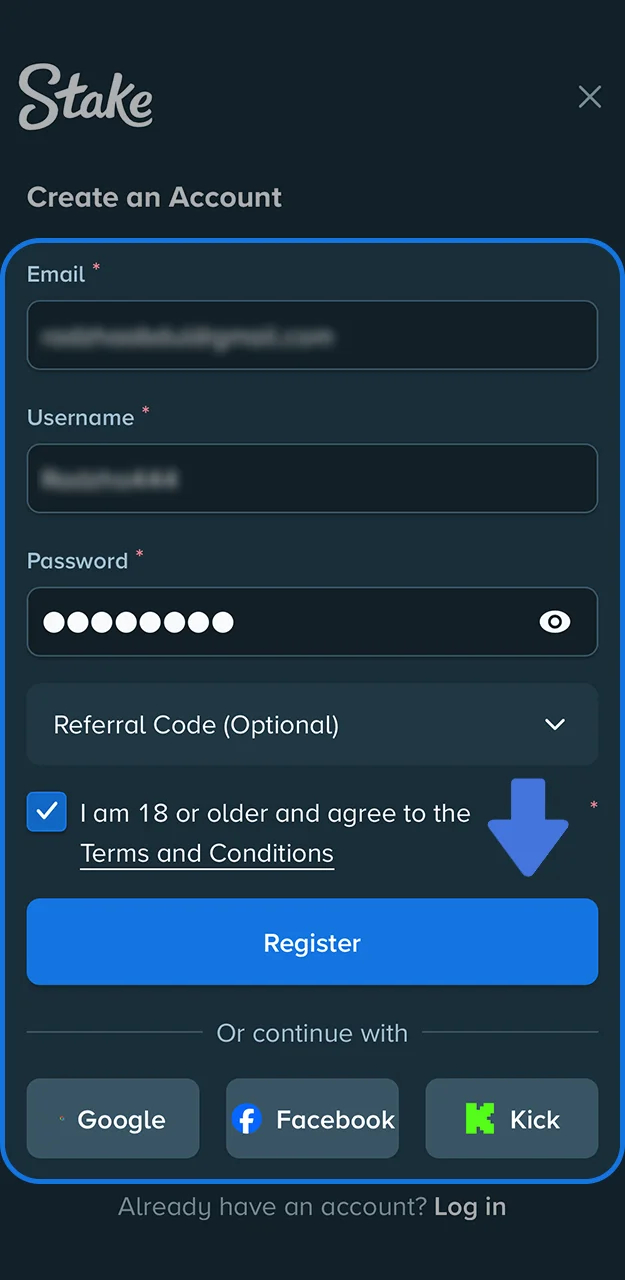
The Android sequence begins in the browser. Open the verified website in the browser you intend to keep using. Check the address there, while the full browser controls are visible. A link opened inside a messaging or social app can use an embedded browser with a different menu and limited installation options.
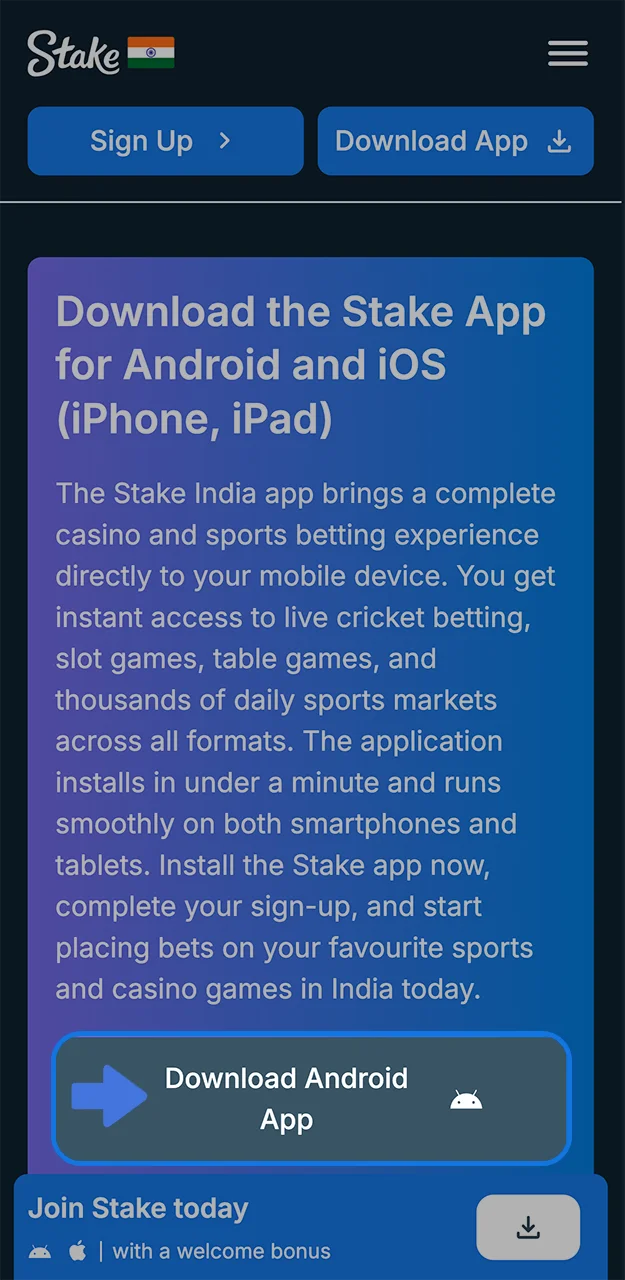
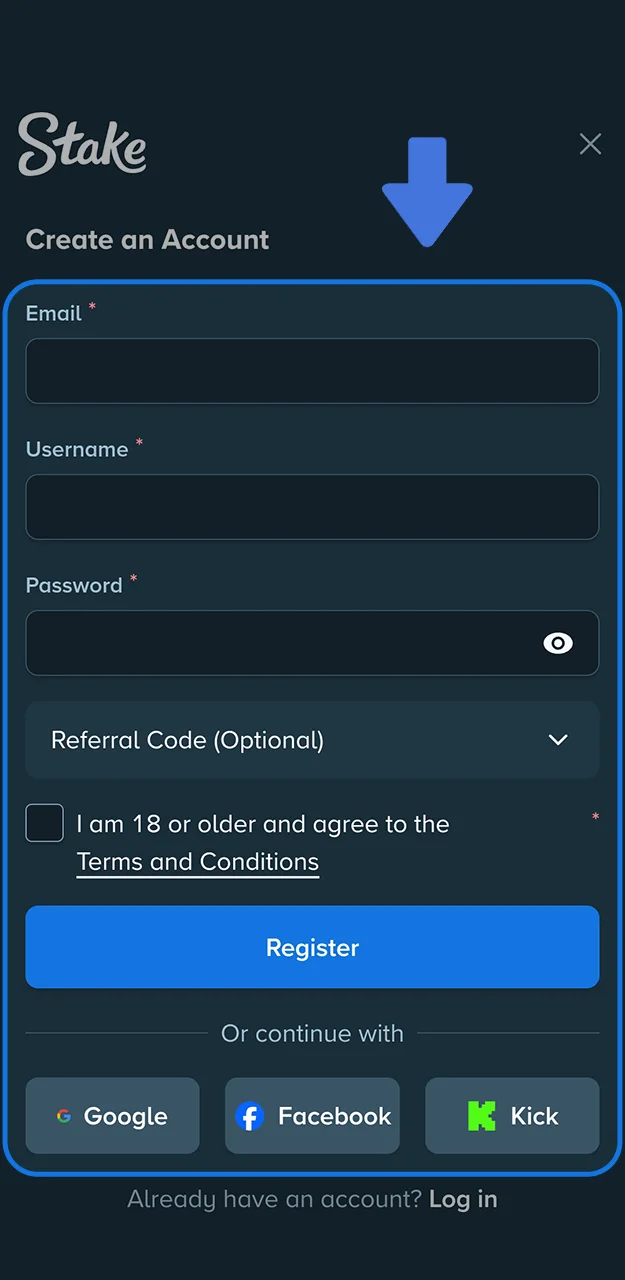
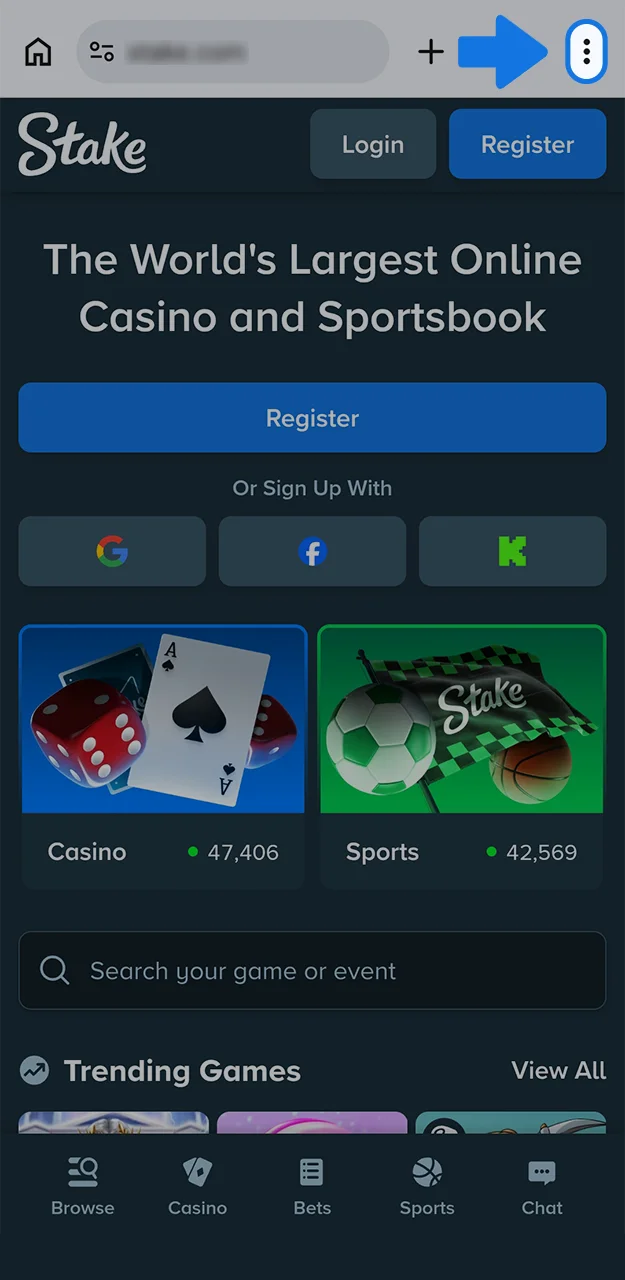
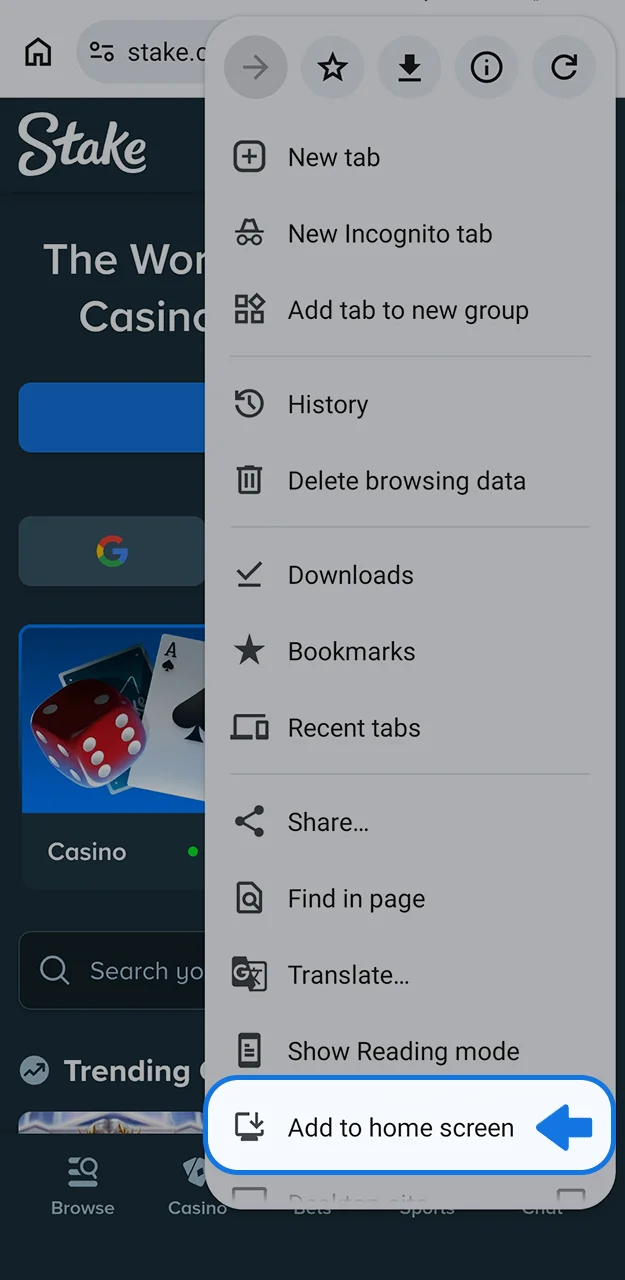
The second capture shows account access. Existing customers should use their established login method; a registration illustration does not mean a second account is necessary to install an icon. Installation and registration are separate actions. If access is restricted, adding the site to a home screen does not change eligibility.
Next, open the browser menu and inspect the installation or home-screen option it offers. The exact wording depends on the browser version and the site's current support. A shortcut may open in a normal browser tab, while an installed web app may open in its own window. Both can lead to the same underlying website.
Finally, verify the new icon by opening it and checking the destination through available app or browser information. If the installation option is absent, return to the normal browser route. There is no need to replace a working browser session with a file from an unknown download page merely to obtain an icon.
Add the website on an iPhone or iPad
Open the verified website in Safari. Find the Share control, then look through its actions for Add to Home Screen. Safari's layout changes between versions, so the Share control may appear in a different position from an older screenshot.
- Load the website in Safari and inspect its address.
- Open Share.
- Choose Add to Home Screen.
- If Safari displays an Open as Web App option, select the behaviour you want.
- Review the name and confirm Add.
- Launch the icon and check that it opens the intended service.
If the action is absent, check the available sharing actions and make sure the page is not inside another app's browser. You can retain a normal bookmark while you resolve the menu issue. An iPhone configuration profile has no role in the browser steps above.
iPhone and iPad setup, including the share menu
The iOS reference sequence follows the website, account access, sharing controls and home-screen confirmation. Use it to identify the stages rather than to match every button position. Browser interfaces can change between software releases, and an iPad may arrange the same controls differently from an iPhone.
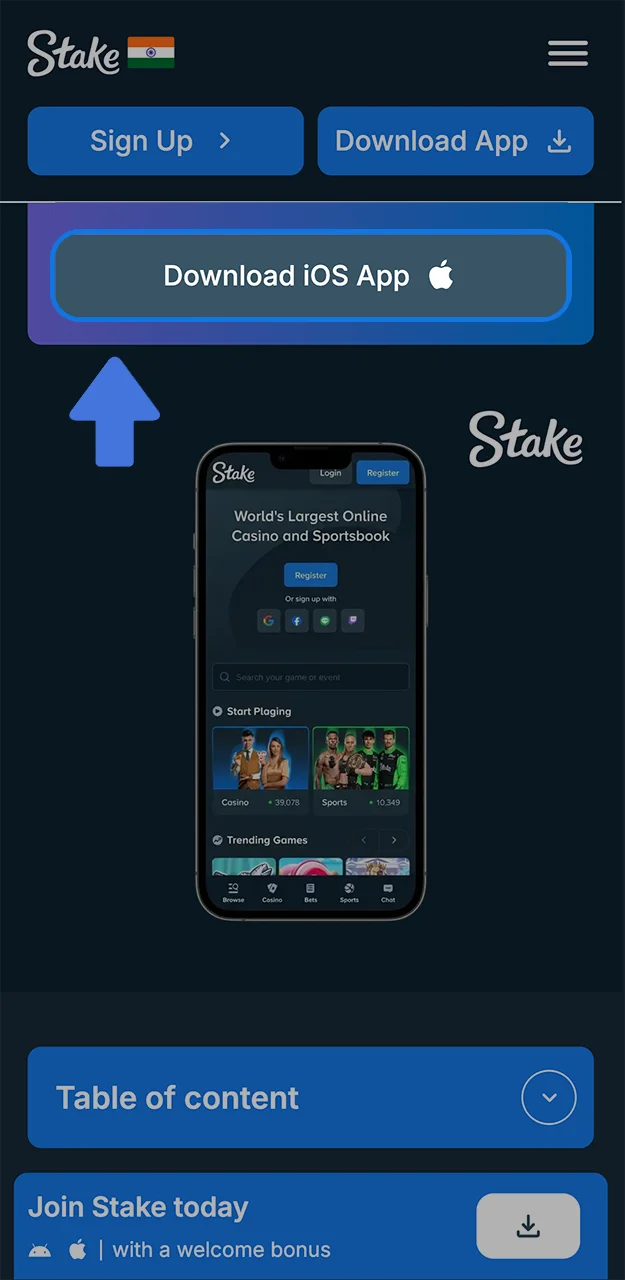
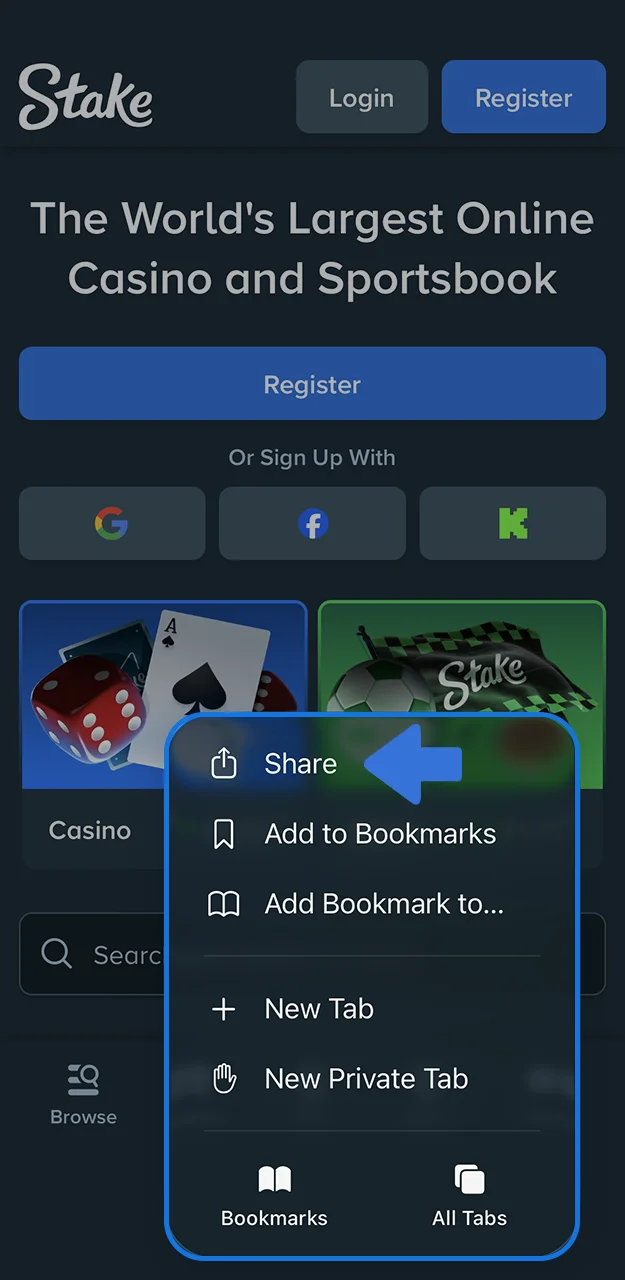
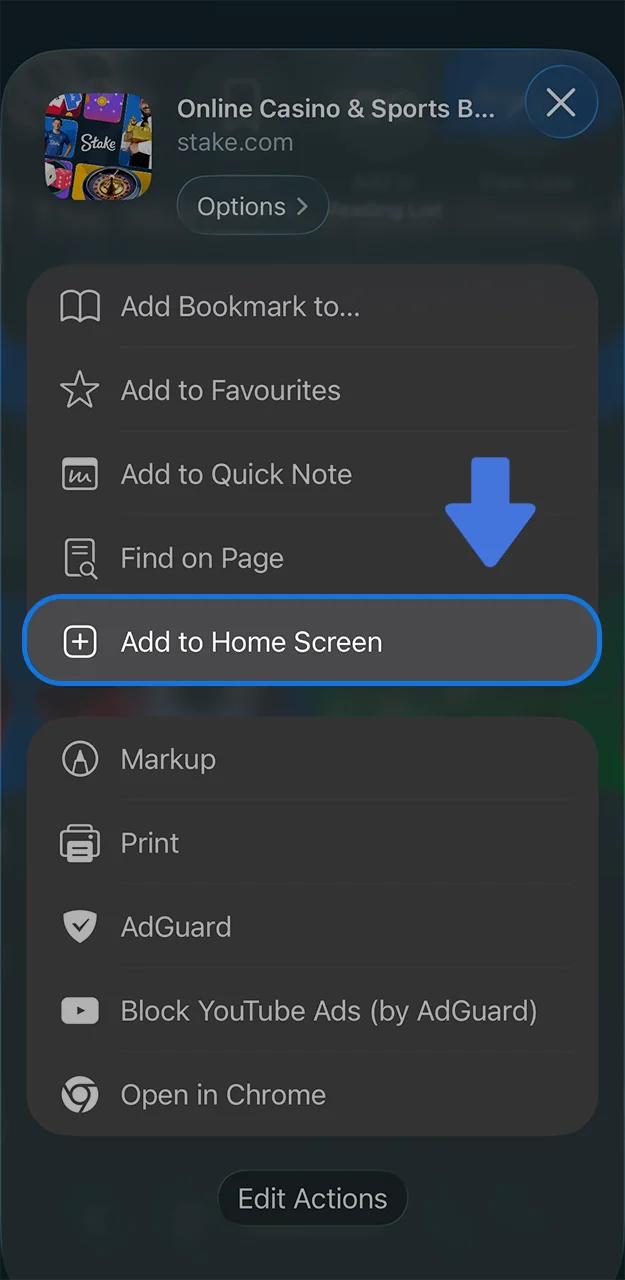
After opening the verified page in Safari, use the sharing controls to locate Add to Home Screen where available. Review the displayed destination and name before accepting. A familiar label is helpful for recognition, but the destination is what determines which service opens.
On a shared device, think about who can reopen the icon and whether the session remains signed in. Device passcodes, account authentication and browser-session handling serve different purposes. Removing the icon later does not necessarily end an existing browser session or remove stored credentials.
If the sharing option is difficult to locate, check that you are viewing the page in the intended browser rather than an embedded app window. Do not accept a request to install an unrelated configuration profile simply because a page describes it as an iPhone casino download. The published browser-app route does not require treating every download prompt as part of the same process.
APK searches: verify the publisher before the file
An APK is an Android software package. Its filename can contain any brand name. An icon, version number or “official” label on a download page proves very little about its origin.
The browser route described here does not require an APK. If you encounter a claimed native app, follow a current operator reference for that exact product and check the destination. Do not treat a generic download directory as the authority.
Be especially careful with packages that promise unlocked games, access without restrictions or built-in predictors. Those claims do not describe normal browser installation. Requests to disable security scanning or grant remote control deserve independent verification, not a quick tap through the warnings.
How to read an app-store listing
Inspect the developer name, linked website, description and supported region together. Ratings belong to the listed product; they cannot prove that it connects to your particular Stake account. The same brand can operate separate regional services with different conditions.
Sign in with the method you already use
Use the same account identifier and sign-in method that worked on the original service. If you registered through an external identity provider, a password reset for a different method may leave the real issue untouched.
A password manager can help you identify the expected domain because saved credentials often follow site boundaries. If autofill disappears on an unfamiliar address, pause and verify the destination. Do not paste your password into a page solely because it looks familiar.
Keep the login troubleshooting guide available when the problem concerns a password, email or authentication factor. Reinstalling an icon rarely changes those account-level conditions.
Handle two-factor codes without losing the session
On a phone, signing in may require switching from the browser to an authenticator and back. Return to the same sign-in attempt. Opening another tab and requesting another code can make it difficult to identify which request remains current.
For time-based codes, use the device's automatic date and time setting. Enter a fresh code with enough time remaining. Distinguish an authenticator code from a code sent by email; the fields may ask for different things at different stages.
Never send a current authentication code to someone who contacts you unexpectedly. Enter it only into the verified flow you started. Official account recovery has its own procedure when you cannot access the factor.
A new phone needs a recovery plan
A forgotten password, lost email account and missing authenticator are three separate problems. Start with the one that prevents the next legitimate step.
- Password only: use the official reset flow with the registered email or supported account identifier.
- Email access lost: recover the mailbox if possible, then follow the operator's ownership checks.
- Authenticator unavailable: use your own recovery material or ask support for the documented recovery process.
- Passkey on another device: inspect the supported device or account recovery route rather than assuming a password reset recreates the passkey.
Do not wipe the old device until you have confirmed access on the replacement. If the account itself has a restriction, request an explanation from support; moving the login screen to another phone does not resolve it.
Read casino controls at phone size
A compact display can hide a game's help button or place a feature purchase close to the ordinary bet control. Take a moment to identify the total stake, rules and history. Rotate the device if that makes the layout easier to follow.
For a live table, distinguish the video from the betting panel. A stream can remain visible while the betting window closes, or freeze while the server continues the round. The accepted-bet record matters more than the animation.
For quick games, count rounds as well as stake size. Small repeated wagers can add up faster on a touchscreen than you expect. Familiarise yourself with the controls before turning on any automatic sequence.
Keep the full sports ticket visible
A selection name can truncate on a narrow screen. Expand it before confirming so you can read the market period, line and price. The same team may appear in several markets that settle differently.
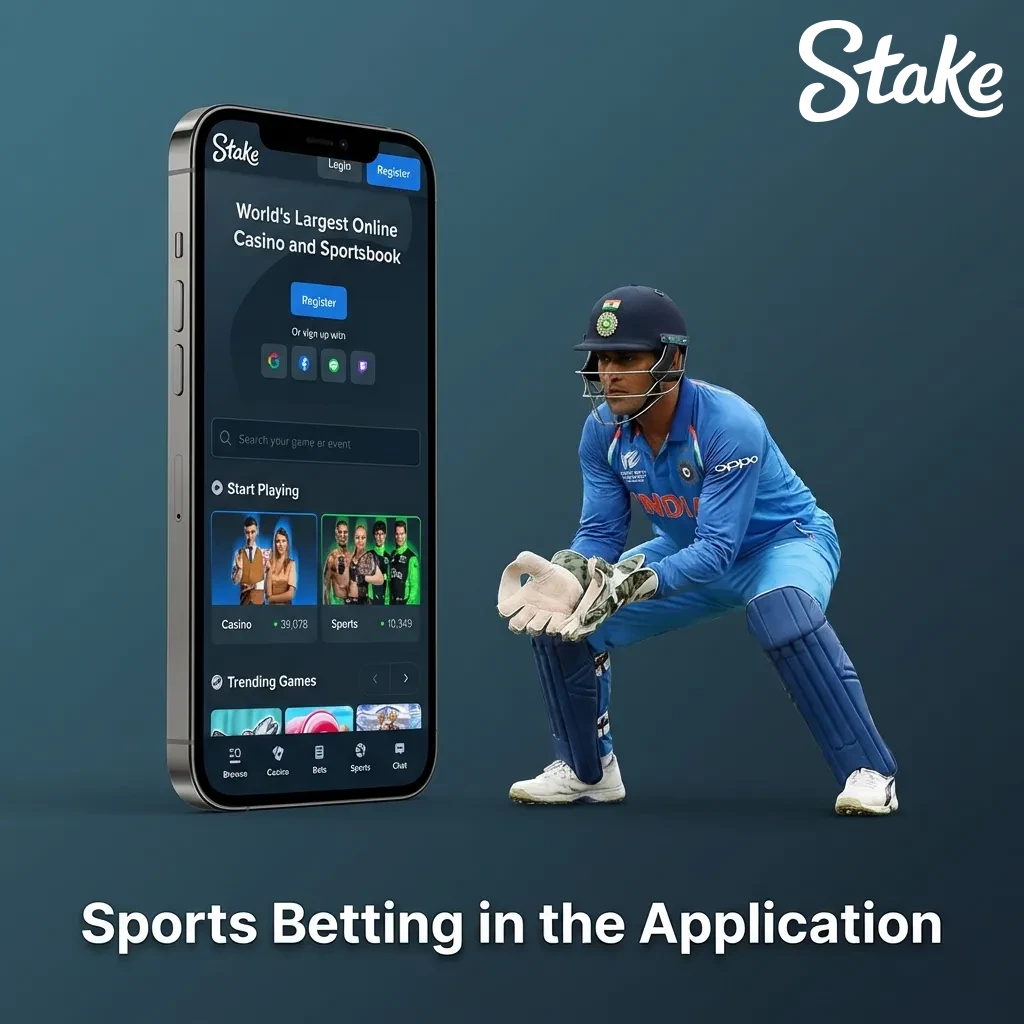
When you switch between a stream and the bet slip, expect delays. A live score does not promise the same moment as a broadcast. After submission, inspect the accepted ticket and reference rather than relying on the price you first tapped.
Cashout may disappear during a market suspension. That is an account and market feature, not an installation failure. Our sports guide explains how to interpret the offer and its limitations.
Check payment details after every app switch
Mobile transfers often involve a browser, wallet or bank app, email and an authenticator. That is several opportunities to lose your place. Read the final destination and amount after returning to the sending app.
For cryptocurrency, match the network and asset. Compare the pasted address with the destination instructions and include any required tag. If you copy a different piece of text during the process, do not assume the clipboard still holds the correct address.
A missing success animation does not justify sending twice. Check transaction history and the sending provider's record first. Use the deposit guide or withdrawal guide to identify which stage needs attention.
Diagnose the symptom before resetting everything
| Symptom | Check first | Next useful step |
|---|---|---|
| Blank screen | Whether the same verified address opens in the normal browser | Record the browser version and try a reload. |
| Repeated sign-in request | Cookies, account method and the exact domain | Use the recovery flow if credentials fail. |
| Only one game fails | The provider, title and account availability | Send the game name and error to support. |
| Code rejected | Code type, expiry and device time | Use a fresh code in the current request. |
| Region message | The operator's restrictions | Ask about existing-account management. |
| Transfer seems missing | Account history and the sending record | Trace the existing transaction before repeating it. |
Clear site data only when you understand the effect. It can remove sessions and preferences, so check that you can sign in again first. Try the least disruptive step that matches the symptom, then record what changed.
Example: returning to a payment form after authentication
Imagine an existing customer opens a withdrawal form on a phone, checks the destination and switches to an authenticator app. On returning, the browser reloads and the confirmation panel is gone. The missing panel does not establish whether the request was submitted.
The next step is to inspect transaction history through the verified account. If a request identifier and pending status exist, record them and follow that request. If there is no record, read any error or expiry notice before deciding whether the form needs to be completed again. Repeating the action immediately could create a duplicate if the first request succeeded.
This situation differs from a rejected authentication code. In that case, the interface should identify the authentication problem, and the customer can check the correct factor and fresh code. It also differs from a location restriction, which cannot be solved by refreshing a phone browser.
For support, describe the sequence: form completed, authentication requested, app switched, page reloaded and history status checked. Include the request reference if available. The device model alone would not explain what happened, whereas this sequence points to the exact uncertainty.
After resolving the transaction, review whether the device frequently reloads browser pages when switching apps. A supported browser update or changes to background activity may help the browsing experience, but those changes should follow preservation of the transaction record. Clearing data first can remove useful local context and require another login.
The same principle applies to a sports ticket or casino round interrupted by an app switch. Confirm the accepted record before repeating the action. Mobile convenience is strongest when the customer can distinguish an unfinished display from an unfinished transaction.
Build a useful mobile troubleshooting record
A good mobile report identifies the device, operating system, browser and launch method. “The app does not work” could mean a shortcut opens the wrong address, a provider window stays blank, a security code is rejected or a transaction status fails to refresh. Each symptom points to a different part of the system.
Record the last successful step. For example: the account opened, the wallet loaded, the withdrawal form accepted an amount, and then the confirmation message failed to appear. That sequence is much more useful than a screenshot of the final blank screen alone. Include any transaction reference before making changes that could erase local context.
When taking screenshots, keep passwords, one-time codes, identity documents and full payment details out of public posts. Share necessary sensitive records only through the operator's secure support route. A public game identifier and a wallet recovery phrase have very different security consequences.
Try one corrective action at a time after preserving the record. Reopening a browser, updating supported software or clearing site data can change different things. Doing all of them together may restore a page while concealing the cause, and clearing data can sign you out. Make sure the recovery method is available before removing an existing session.
For an unresolved payment or game result, the aim is to establish the authoritative account record. Restoring the animation or the original screen appearance is secondary. Ask support to confirm the transaction or round status explicitly so that you know whether any further action is needed.
Updates, alerts and device permissions
A browser app loads website changes from the service; the browser and operating system still require their own updates. If a screen looks stale, reopen it and compare the ordinary browser view before assuming you need another download.
Grant permissions for a clear purpose. Promotional notifications are optional information, not a prerequisite for reading an account record. You can adjust them in the browser or device settings without changing your account balance.
If notifications encourage you to reopen games after you intended to stop, disable them. Convenience should fit the boundaries you choose for your phone.
Removing the icon and closing an account are separate actions
Removing a shortcut or uninstalling a browser app changes your device. It does not necessarily close the operator account, cancel a pending transfer or activate self-exclusion. Use the appropriate official account process for those requests.
Before selling or resetting a phone, sign out, remove saved credentials where appropriate and confirm your recovery options on another device. A home-screen cleanup is not a complete account-security check.
Stake app questions
Do you need an Mobile app guide for the browser app?
No. The published browser method uses the website and Chrome's installation or shortcut controls.
Can you add Stake on an iPhone?
Safari provides a home-screen action for websites. Verify the destination and follow the options available in your version.
Does mobile access create a separate wallet?
No separate wallet follows from adding an icon. For the same service and account, use your established login and inspect its existing records.
Can the browser app work without internet?
It cannot submit account transactions or live wagers offline. A cached page only shows information your device already holds.
Will reinstalling fix a lost authenticator?
No. Use the documented account-recovery process or your own recovery material.
Can an app or VPN remove an India restriction?
No. Installation and connectivity do not change the applicable rules or account eligibility.
About this guide
Garry Anderson · Editorial author
This independent guide combines product explanations, worked examples and references to the operator's documentation. Numerical scenarios illustrate the rules; they do not describe a promised result or a new live-account test.
View the reference materialReferences and product documentation
Reference review: 26 September 2026. Consult the current account interface and applicable rules for changing details. The examples on this page do not represent a personal offer.